
Verifying a service with an Azure firewall enabled
When you create a Simple FTP Service backed by Azure and your storage account has a firewall enabled in Azure, the Verify Access step cannot reach your container and fails with an error like:
This request is not authorized to perform this operation
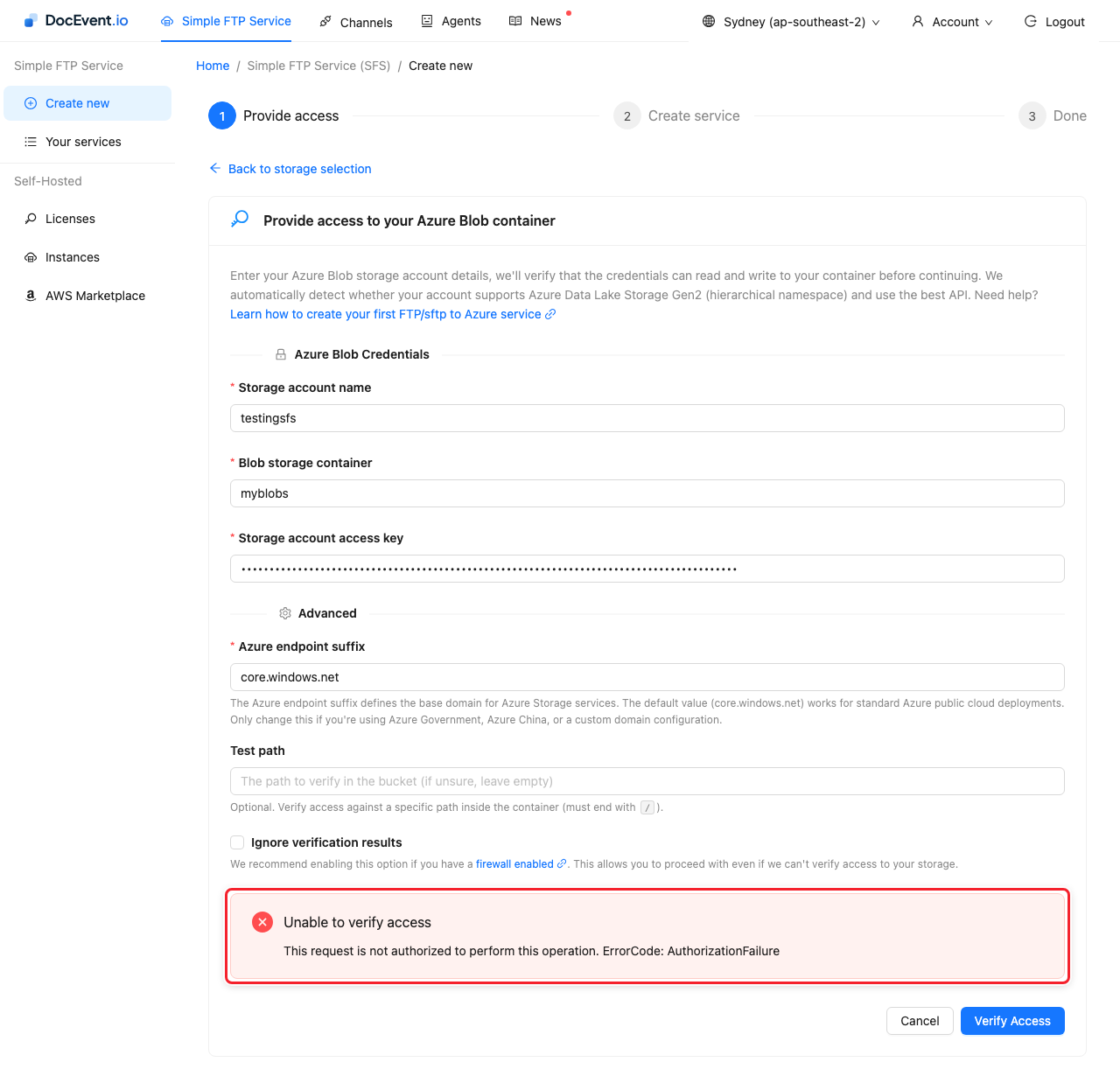
This is Azure's firewall doing its job - DocEvent's verification request is just another blocked caller. There are two ways through it.
Solution 1 - Temporarily open the firewall (recommended)
If this is your first Simple FTP Service, this route is worth the extra steps because it proves end to end that your service works:
- In the Azure portal, open your storage account and go to Security + networking → Networking, and temporarily allow public access ("Enabled from all networks").
- Create the service in the DocEvent console and let Verify Access pass.
- Re-enable your firewall in Azure.
- Add the backend storage IP addresses for the DocEvent region your service runs in to your Azure firewall's allowlist. Without this, verification succeeding once doesn't help: the service itself needs to reach your container on every transfer.
Solution 2 - Ignore verification results (advanced)
If you have used Simple FTP Service before and know your credentials are right, you can skip the verification instead: tick Ignore verification results (under Advanced) and click Verify Access again.
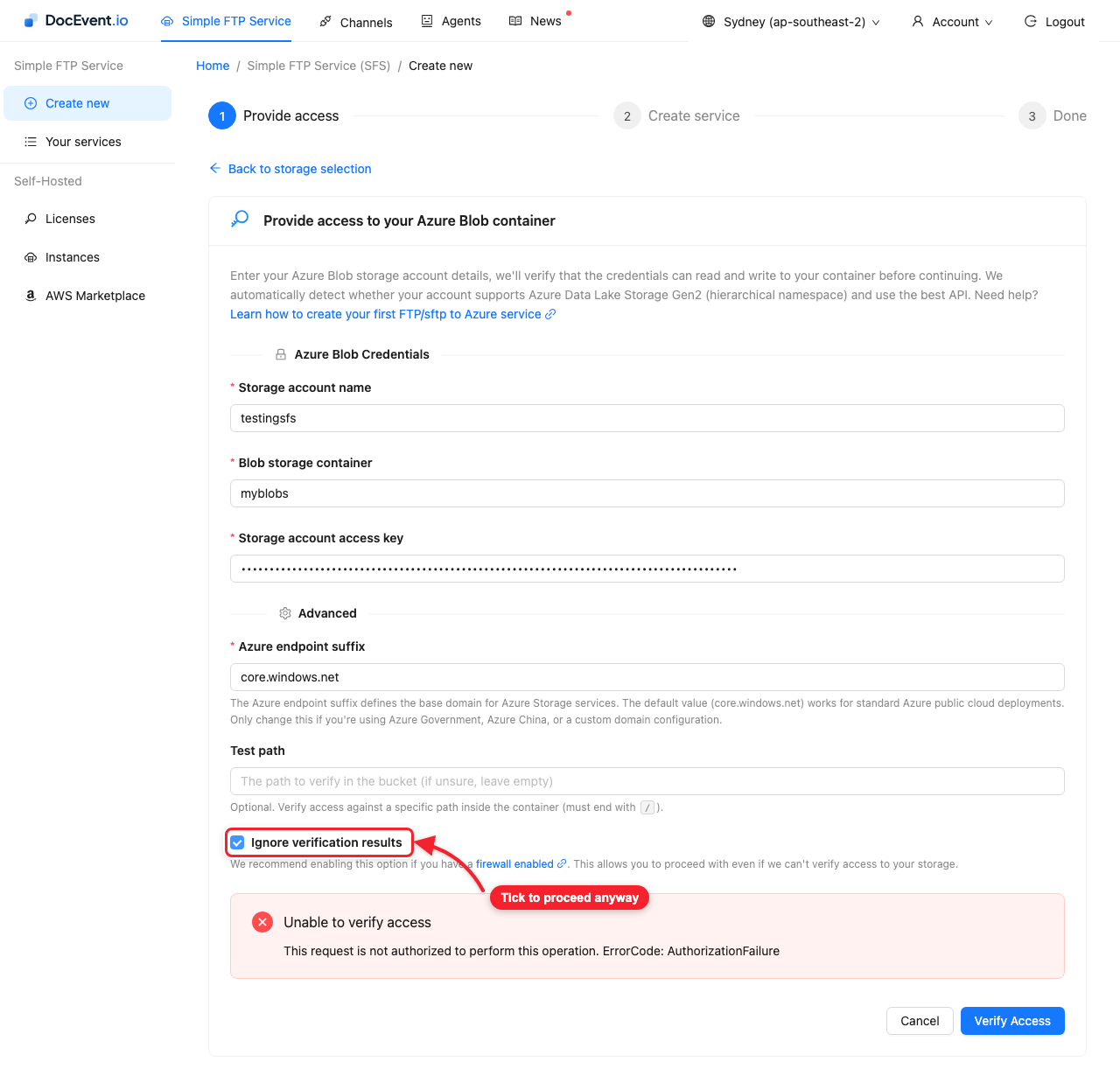
The wizard continues to the service details step, and the service is created without the credentials being verified:
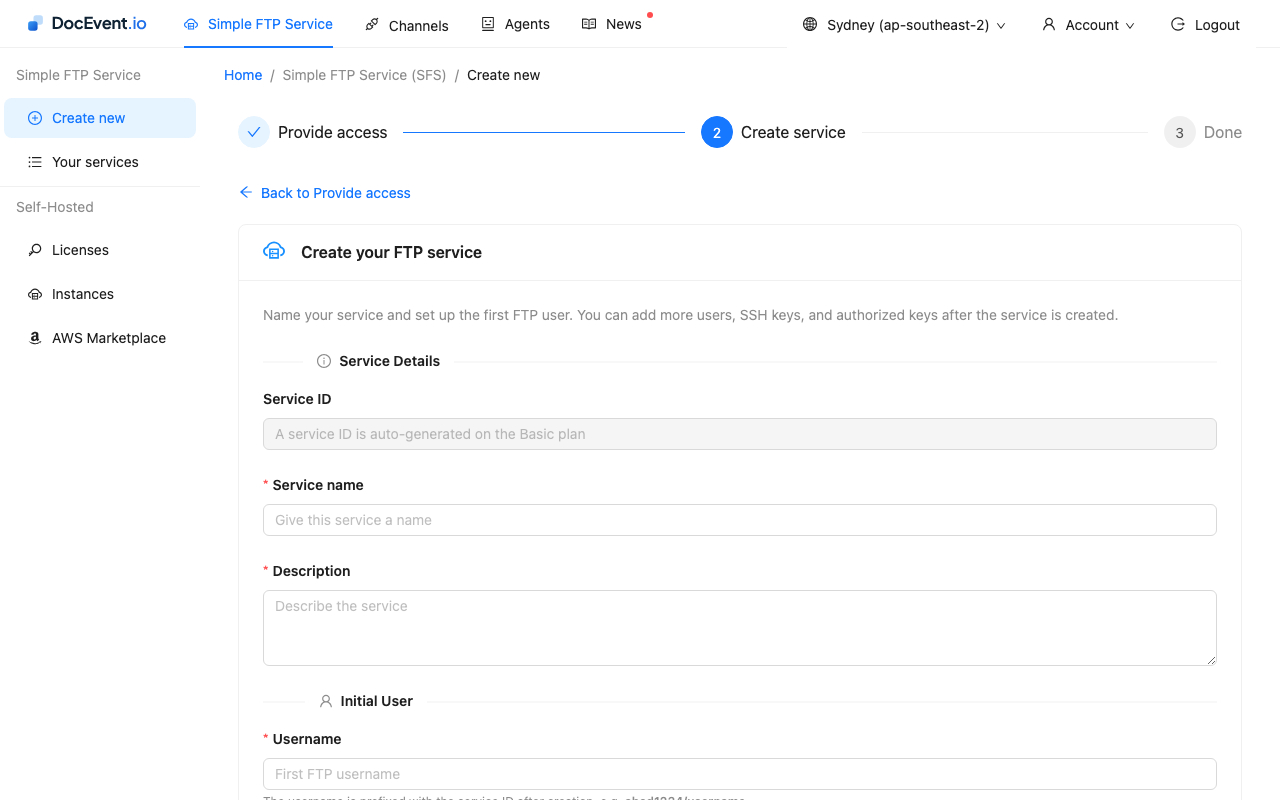
Two things to remember with this route:
- You still need to add the same backend storage IP addresses to the Azure firewall as above - or every FTP upload and download will hit the same firewall block that verification did.
- Nothing has proven the credentials work, so test the service yourself afterwards by logging in over FTP or SFTP and transferring a file.